 MyTimeBack
 keeps the apps that take your time shut, and lets you earn minutes back by doing something real. You read, walk, focus or move, and the app turns that time into app time. Here is the whole flow, step by step, with the rates and the privacy details.
The short version
Your phone isn't the enemy. Mindless phone use is. MyTimeBack adds one small pause between you and the apps you open on autopilot.
- You choose the apps to block.
- They stay shut. That is their normal state.
- You do an activity and earn minutes.
- You spend those minutes on the blocked apps, now or later.
MyTimeBack runs on iPhone and iPad with iOS or iPadOS 16.4 or later. It is made for adults managing their own phone. It is not a parental control app.
Step 1: Choose the apps to block
The app asks, "Which apps do you want to block?" You answer in Apple's own Screen Time app picker. Pick the apps that pull you in, like social feeds, video apps or games.
Apple is the one that locks them. MyTimeBack uses Apple's Screen Time system, so the block is handled by iOS itself.
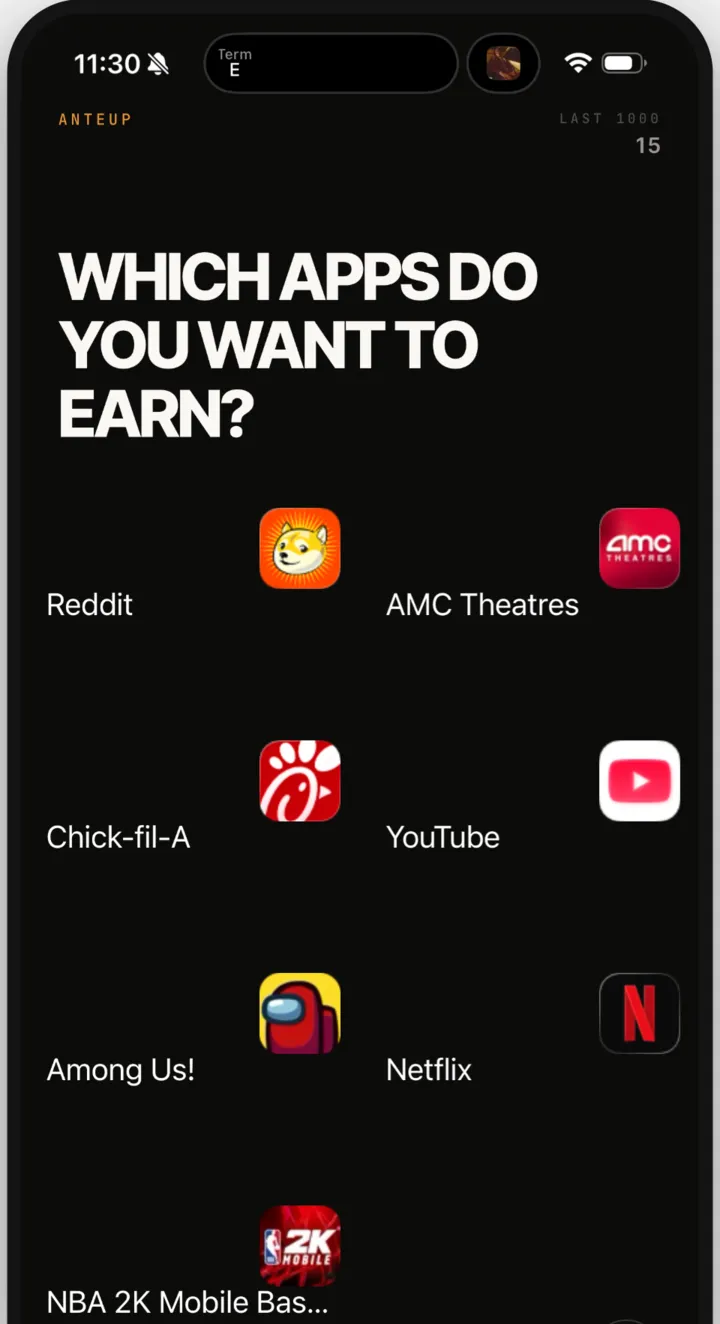
Step 2: The apps stay shut
Once chosen, those apps stay shut. Shut is the resting state, not a punishment. Everything else on your phone works as usual. Calls, messages and the apps you did not pick are untouched.
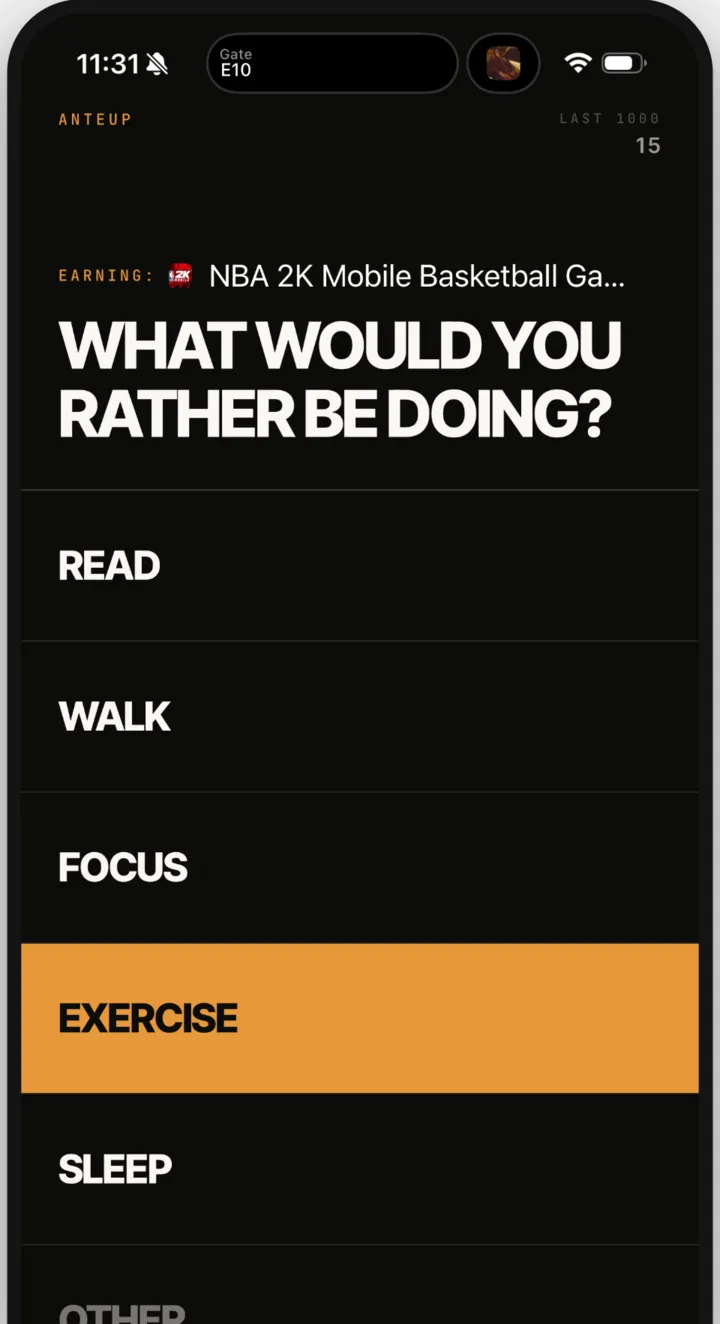
Step 3: Choose an activity
Next the app asks, "What would you rather be doing?" You pick one:
- Read
- Walk
- Focus
- Exercise
- Sleep
- Other (write your own)
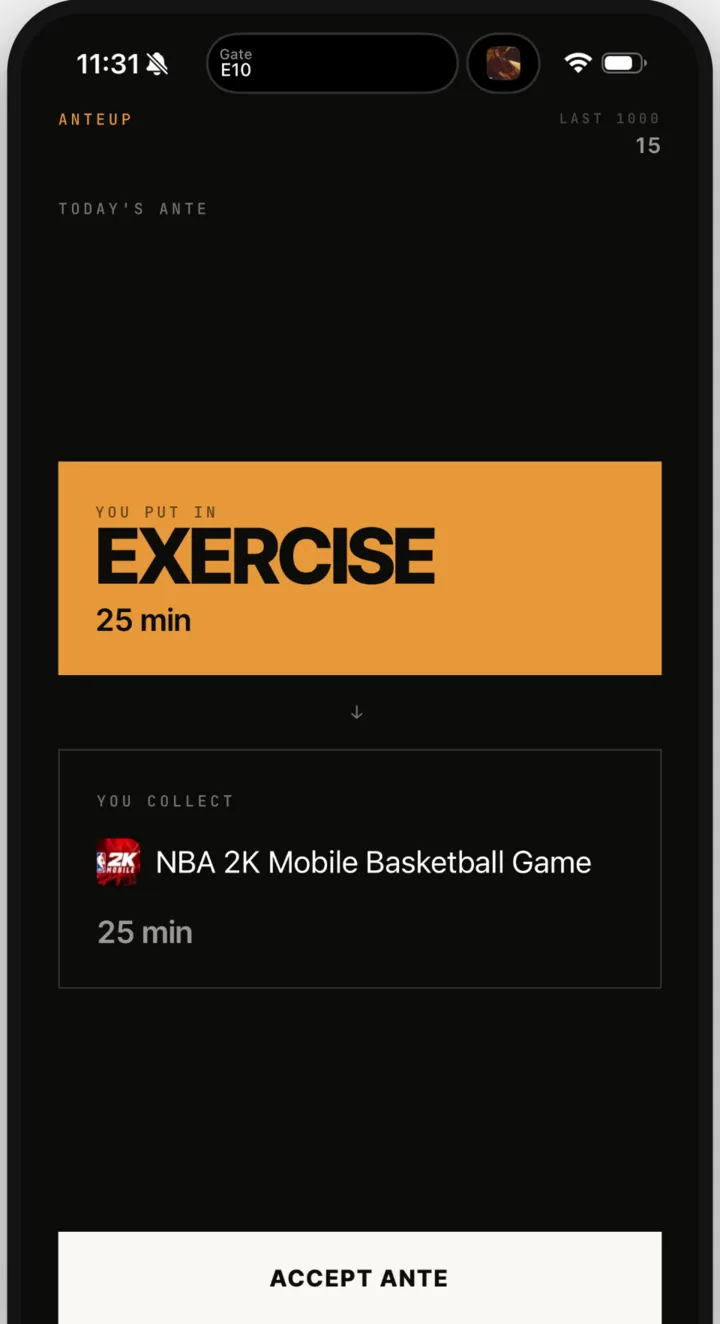
Step 4: Start a session
The session screen shows two sides. "You do" shows the activity and its minutes. "You earn" shows the minutes of app time you will get. You can adjust the minutes before you start. Once you tap Start Session, the plan is set.
Step 5: Finish and earn minutes
When the session ends, your earned minutes open the blocked apps for a set time. Use them right away or save them for later. The choice is yours.
Earning rates
Different activities earn at different rates. Exercise pays the most because the camera can check it.
| Activity | How it counts | You earn |
|---|---|---|
| Exercise | Checked by the front camera | 4 minutes per minute |
| Walk, Sleep, workouts | Read from Apple Health (optional) | 1 minute per minute |
| Read, Focus, Other | Time you stay in the session | 1 minute per minute |
| Everyday steps, no session | Read from Apple Health | 1 minute per 4 minutes of activity |
How exercise is checked
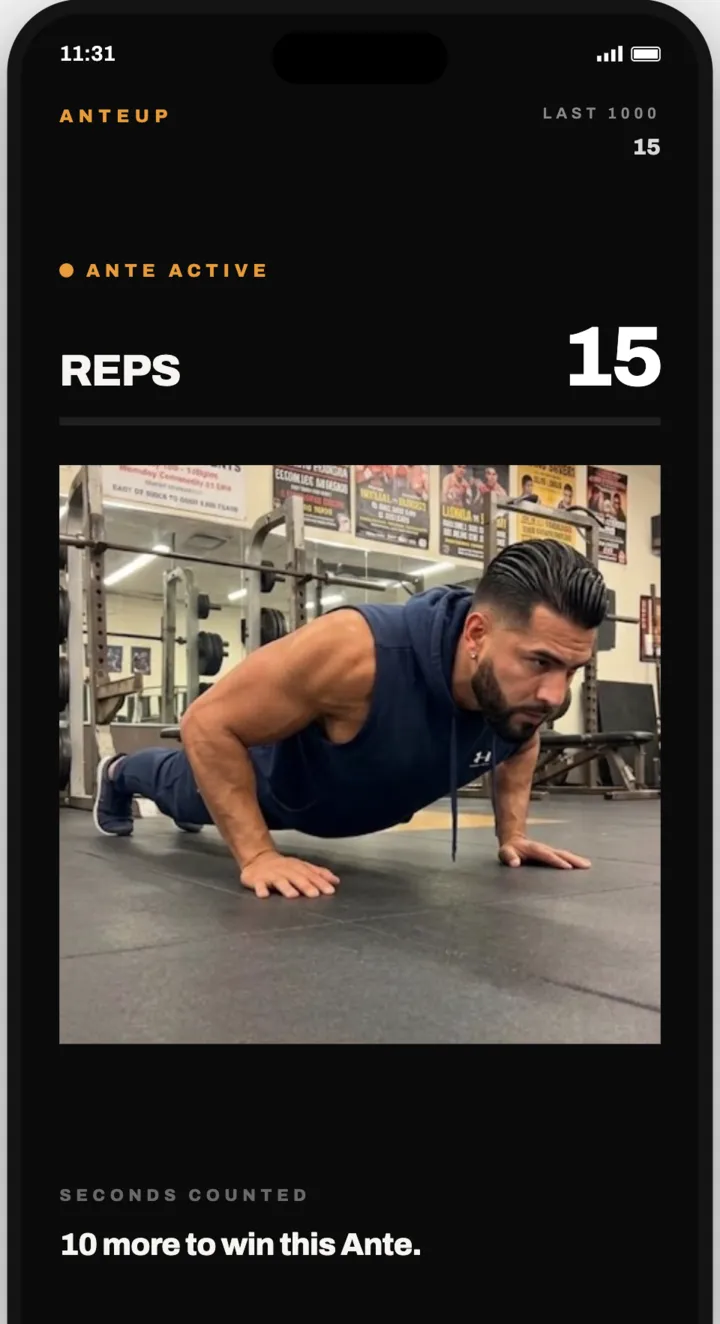
For exercise, the front camera counts your movement. It works for push-ups, pull-ups, jumping jacks, sit-ups, squats and running in place. Prop the phone up, step back and go.
The server keeps the clock
A session counts only when MyTimeBack's server confirms the time. Changing the phone's clock does not add minutes. This keeps the record honest for you.
Want to see what your current habits add up to? Try the screen time calculator.
Step 6: See your progress
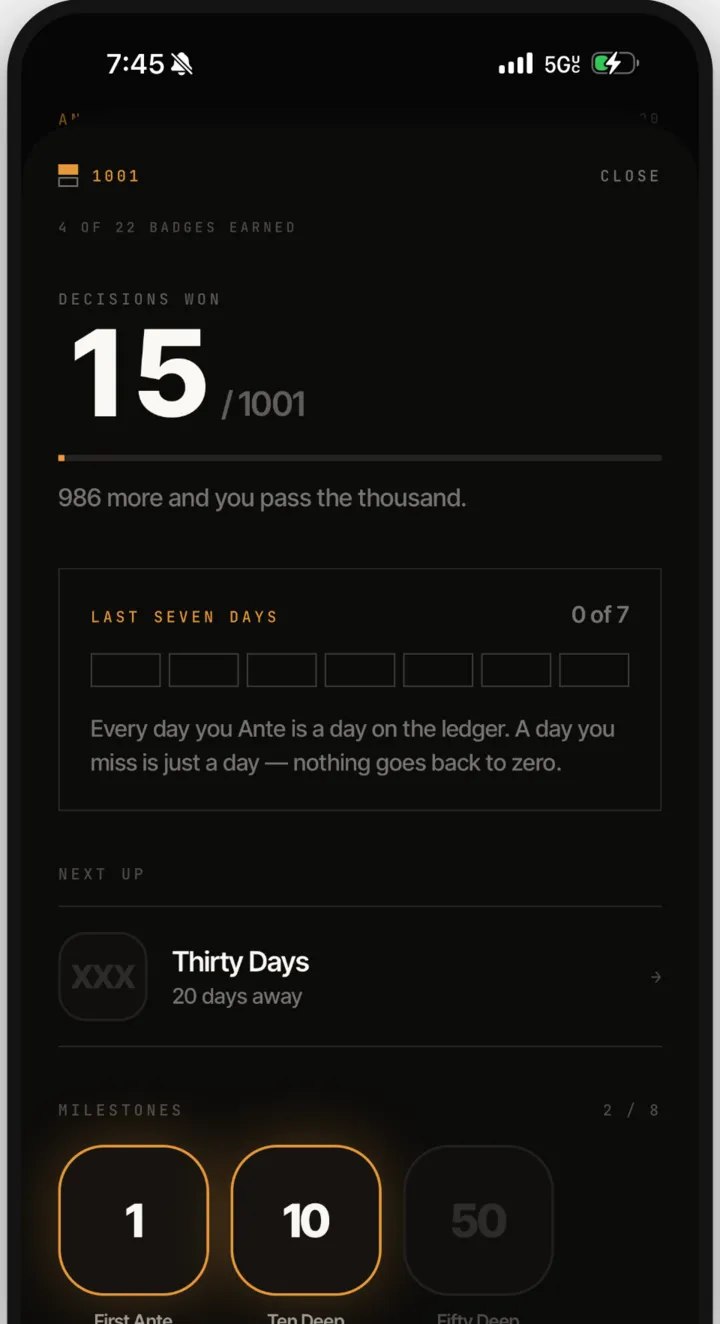
MyTimeBack keeps a record of your sessions and the minutes you earned. You also collect badges along the way. They are about time and care.
There are no streaks. Nothing resets. A missed day is just a day. There are no leaderboards and no social features, so it is only you and your own record. The app never scolds you.
What happens when your minutes run out
When your earned time is used up, the blocked apps go back to shut. That's it. No alarm, no lecture. If you want more time, start another session and earn it.
Free and Premium
MyTimeBack is free to download and use. The free plan includes 3 sessions a day and shows a single ad.
MyTimeBack Premium is an optional subscription with monthly and annual plans. It removes the ad, allows unlimited sessions a day and keeps your full history. To cancel, go to iOS Settings, tap your name, then Subscriptions, then MyTimeBack Premium, then Cancel.
How to stop a session or remove the restrictions
You are always in control.
- Stop a session: you can stop it in the app.
- Remove the block entirely: go to iOS Settings → Screen Time and remove MyTimeBack's Screen Time access. You can do this at any time.
- Delete everything: in the app, "Delete everything" deletes your account and your record for good. There is no undo.
Privacy: camera, Screen Time and Health
- Camera: exercise is processed on the phone. No video is recorded. Nothing is uploaded. No image leaves the device.
- Screen Time: your app choices stay on the phone. MyTimeBack never sees what you do inside an app.
- Apple Health: optional. MyTimeBack reads steps, walking distance, workouts and sleep only. It never writes to Health. Health data is never used for ads or shared with advertisers.
The full details are in the privacy policy.
Quick troubleshooting
- The app picker shows nothing or will not open. Check that your device runs iOS or iPadOS 16.4 or later, and that Screen Time access was allowed for MyTimeBack.
- The camera is not counting reps. Step back so your whole body is in frame, and use good light.
- Walks or sleep are not showing. Apple Health access is optional. Check that you allowed MyTimeBack to read steps, walking distance, workouts and sleep.
- Still stuck? Visit MyTimeBack support or email support@meetdelai.com. We answer within 2 business days.
If you are new to all this, start with our guide on how to stop doomscrolling, or read how earning screen time works in general.
Questions
Do I have to use the camera?
No. The camera is only used for exercise sessions. You can earn with Read, Walk, Focus, Sleep or Other instead. Those earn 1 minute per minute.
Can I save earned minutes for later?
Yes. Use them right away or keep them for later. Your earned minutes are yours to spend when you choose.
Can I change a session after it starts?
You can adjust the minutes before you tap Start Session, but not after. If plans change, you can stop the session in the app.
Does MyTimeBack work on Android or Mac?
No. MyTimeBack is for iPhone and iPad only, on iOS or iPadOS 16.4 or later. There is no Android, Mac or web app.